Websites & site packs 2.0
Every website can have settings of its own in Vimlike: keys for its places, styles that hide its clutter, AI commands, CSS, a script, and switches. Two things fill them — a signed site pack from the catalogue, and you, by hand or by asking the AI. The two are kept apart, and yours win.
The toolbar popup
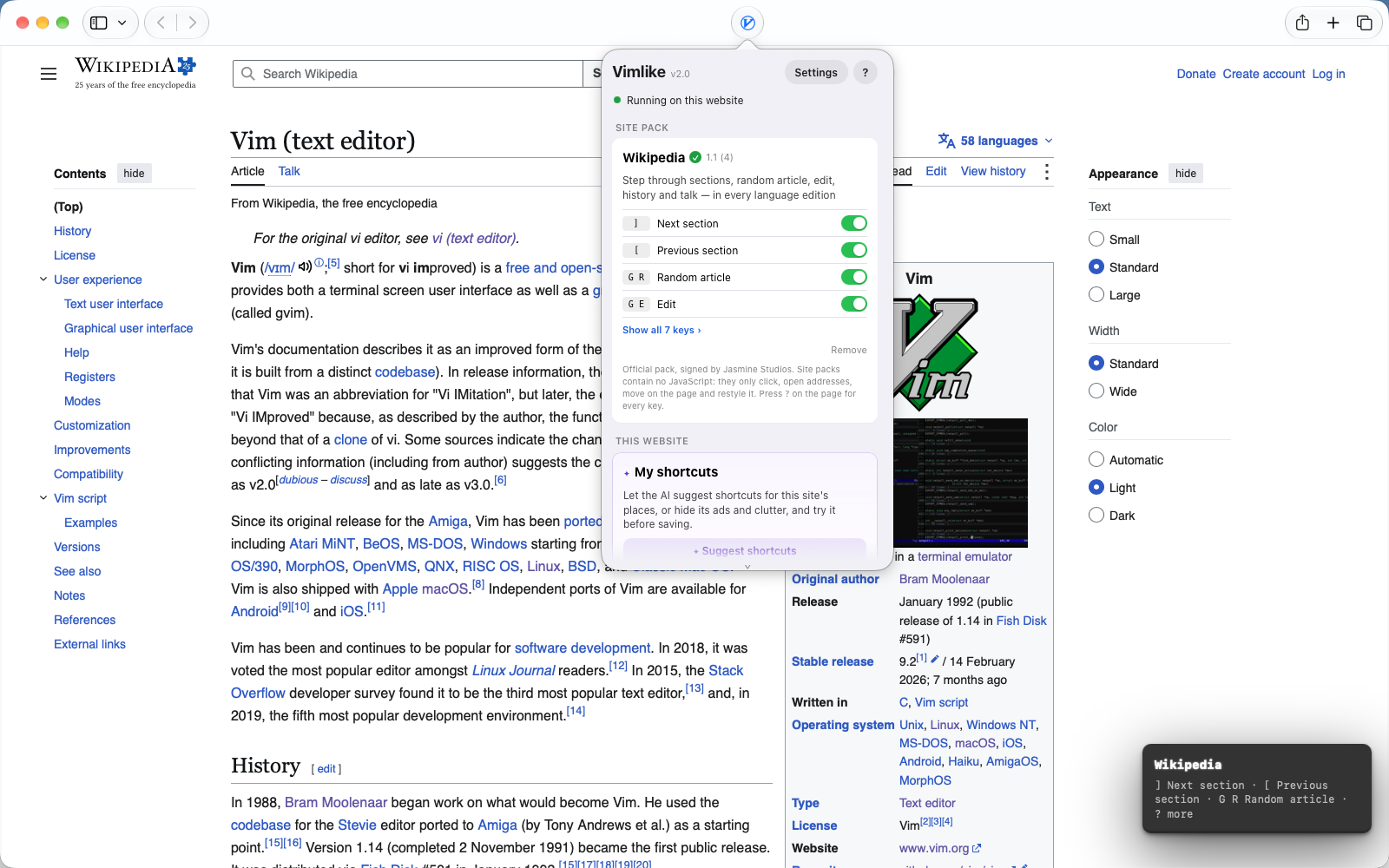
| Card | What is in it |
|---|---|
| Site Pack | Shown only when the catalogue has a pack for this site. Before installing: its name, what it does, how many keys. After: every key with a switch, the keys it hands back to the site, its CSS, Update when a new version is out, Remove. Installing applies at once, no reload. |
| This Website | ✦ My shortcuts — what the AI made for you here, each key and style with a ✕, and the two buttons below: Suggest shortcuts and Clean up this page. Under it, the site's switches: Vimlike on/off/auto, start in Normal or Insert, dark mode. Customize turns the website's own settings on for a site that only had a pack. |
Suggest shortcuts
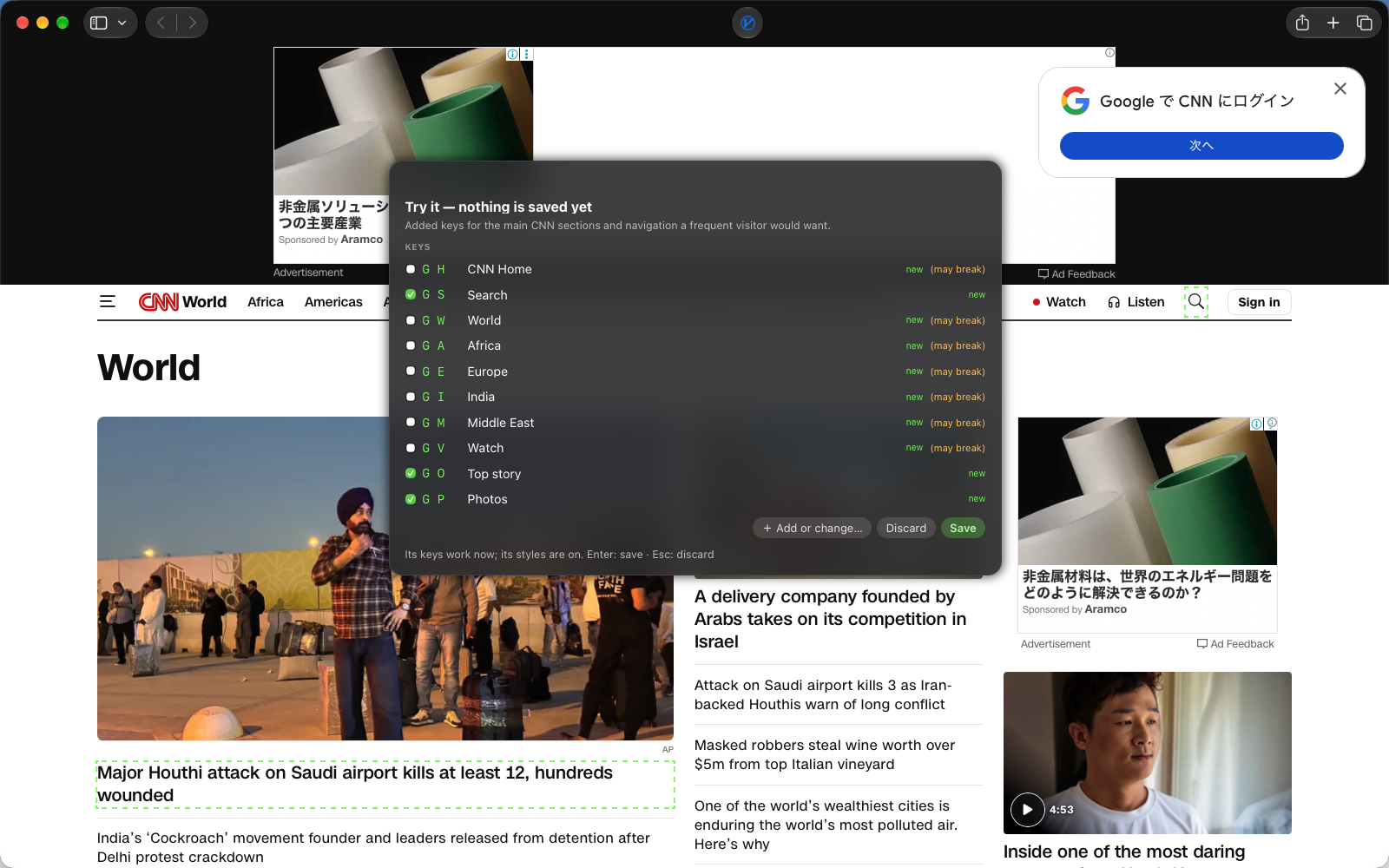
- Press ✦ Suggest shortcuts in the popup, or type
:keysin the bar. The AI looks at the page — what can be pressed, what the site's places are — and proposes keys in the g family: gh home, gn new, gs search. It never picks a key you already use. - The Try panel opens in the bar's window. Every key is live: press one and watch the page. Each suggested element is outlined; untick anything you do not want. A key marked may break rests on a fragile selector.
- + Add or change… asks for more in your words — "a key for the Subscribe button", "use other keys for World", "turn on Watch" — with chips to start the sentence.
- ↩ or Save keeps them in this website's settings. Esc or Discard throws the draft away. The draft survives moving to another page of the site while you try.
A key for a place whose contents change — the top story, the first result — follows the place, not today's item. Keys are clicks and addresses, never code: the AI answers with which element and which key, and Vimlike builds the XPath and checks it on the page before it is shown to you.
By hand instead. Press gk on any page, click the element, press the key you want and name it. Or in Settings › Websites › the site › Add…, give a key a click target, an address, or several steps (click, move to the next match, scroll, wait, open).
Clean up this page
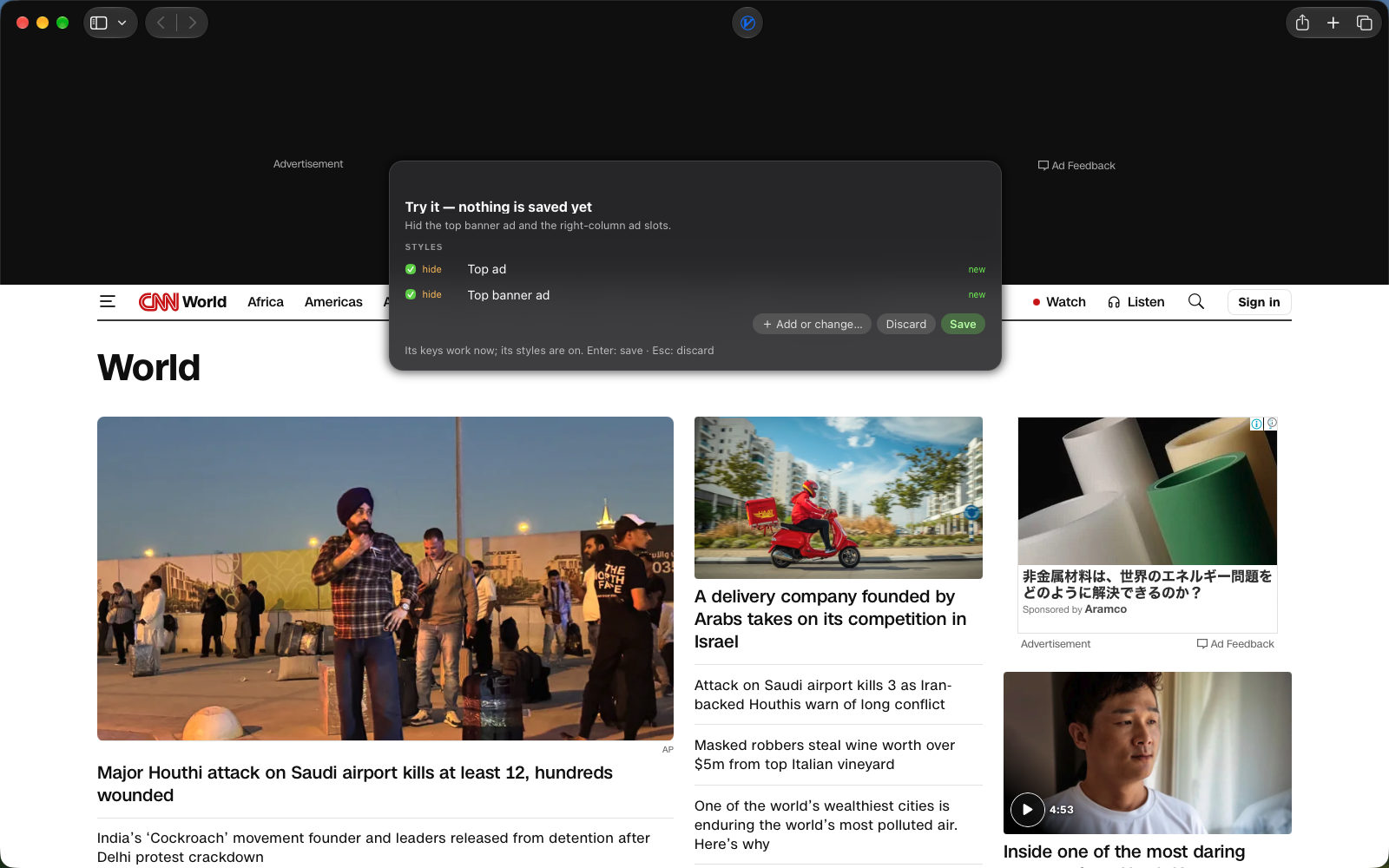
✧ Clean up this page in the popup, or :clean, opens the same panel aimed at styles. Chips offer the
usual culprits — ads and promos, banners and pop-ups, the sidebar, comments, dim the rest, reading mode — or say what should
go. Each result is a style: hide, dim, or show on hover, applied to one area of the page. The main
text can never be hidden. Styles land in the website's settings as CSS; Settings › Websites › My Styles lists them in words
and removes them one by one.
A website's own settings
Settings › Websites lists every website with settings, A to Z, and opens each as one sheet in two groups.
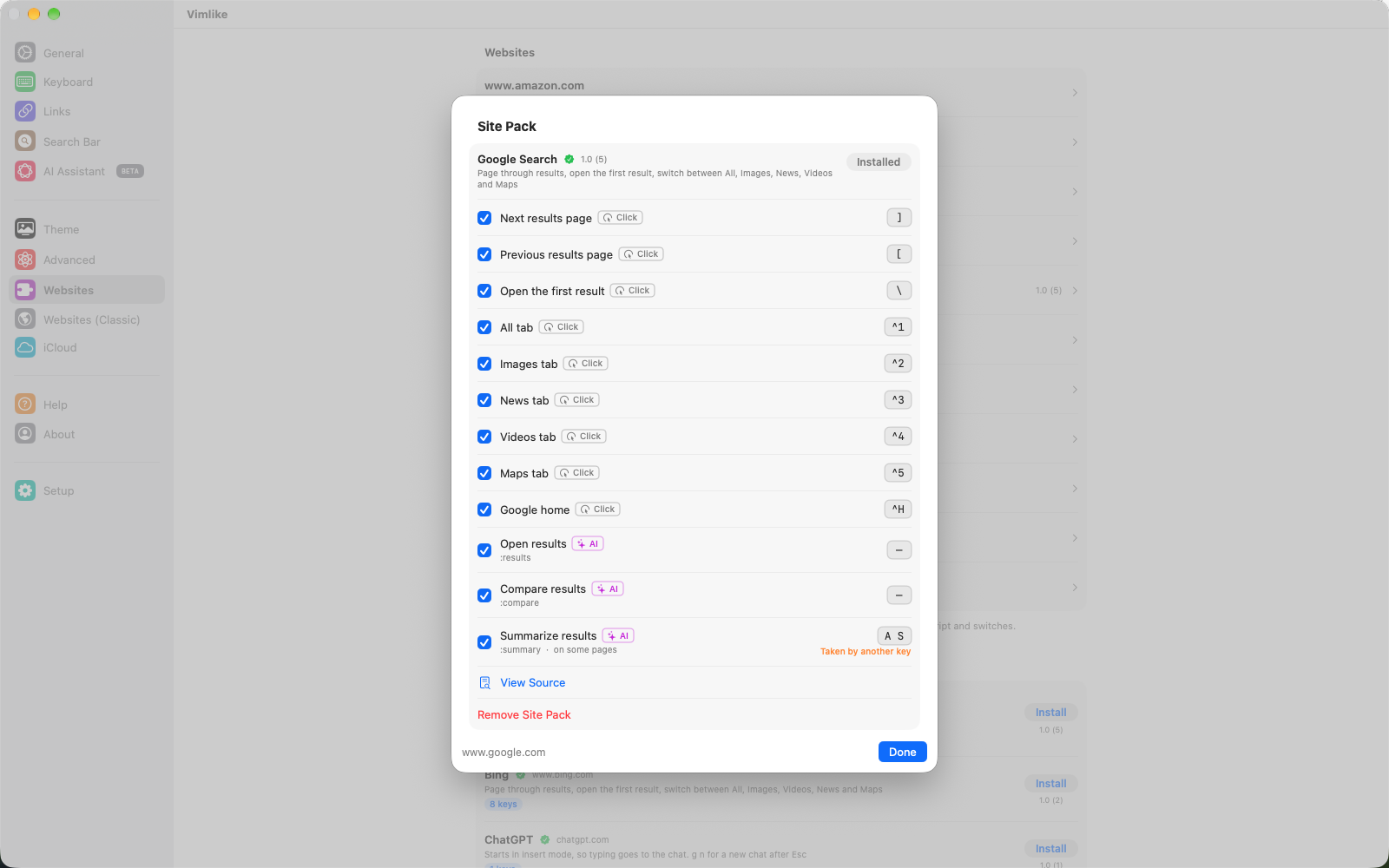
| Website Settings | What it holds |
|---|---|
| My Keys & AI Commands | Keys the AI suggested or you added, and AI commands limited to this site. A tag on each says what it does — Click, Open, Steps, AI — and opens its editor; click the key to re-record it. |
| My Styles | The hide/dim/hover styles from Clean up this page, with the request they came from. |
| Keys I give back | Vimlike keys that should do nothing on this site, so its own shortcuts get them — j k slash on a site with vim keys of its own. |
| Switches | Vimlike, start-up mode and dark mode for this site. Auto follows the pack's suggestion, then your global settings. |
| CSS & Script | Your own stylesheet and JavaScript for the site, loaded after the pack's so yours wins. This is the one place code of yours runs. |
A site that only has a pack has no website settings until you turn them on — Enable Website Settings in the sheet, or Customize in the popup. Delete Website Settings removes only yours; the pack stays.
Site packs
A site pack is one signed file for one website, published by Jasmine Studios: keys for the site's places, a few AI commands, optional CSS that tidies it, and the Vimlike keys it hands back so the site's own shortcuts work. The catalogue is in Settings › Websites, below your sites, and the popup offers the pack for the site you are on.
- Signed, and checked every time. A pack is verified on your device each time it is used. A pack that no longer verifies does not run.
- No JavaScript. A pack can click, open an address, run a short list of steps, hide and dim — nothing else. What a pack can do only grows with an app update, not with a pack update.
- Versions. Shown as "1.1 (8)": the version people see, and the build. Updates are off by default; a new version shows an Update button, and installing it keeps your switches and re-keyed keys.
- Keys you can change. Switch any pack key off, record another key for it, or copy it into your own keys to edit its target. The pack itself stays as published; your changes sit beside it.
- First visit. The HUD announces a pack's main keys the first time you open the site (Settings › Websites › Preferences: first visit, always, never).
Packs at the time of writing: Amazon, Bing, ChatGPT, Claude, Clien, DuckDuckGo, Figma, GitHub, Gmail, Google Calendar, Google Docs, Google Drive, Google News, Google Search, The Guardian, Hacker News, Instagram, Jira, Netflix, Reddit, Slack, Stack Overflow, Wikipedia, X and YouTube. Want one for a site you use? Tell us.
The pack format
For the curious — and for anyone who wants to read what an installed pack does: View Source in the site's sheet shows exactly this.
{
  "format": "vimlike-site-pack/1",
  "id": "hacker-news",
  "name": "Hacker News",
  "description": "Next page, open the top story, jump to new, ask, show, past, comments and jobs",
  "version": 3,                 // build; "marketingVersion": "1.0" is what people see
  "minBuild": 261,              // the app build that understands this pack
  "host": "news.ycombinator.com",
  "match": ["^https://news\\.ycombinator\\.com/"],
  "actions": [
    { "id": "next",  "title": "Next page",         "keys": "bracketright", "click": "//a[@class='morelink']" },
    { "id": "new",   "title": "New",               "keys": "g n",          "open": "https://news.ycombinator.com/newest" },
    { "id": "top",   "title": "Open the top story","keys": "backslash",
      "steps": [ { "click": "(//span[@class='titleline']/a)[1]" } ] }
  ],
  "unmap": ["j", "k"],          // Vimlike keys released to the site (optional)
  "css": "…", "cssDescription": "Hides the footer",
  "commands": [ { "shortcut": "comments", "name": "Top comments", "prompt": "…", "key": "a c" } ],
  "hud": ["next", "top"],       // what the first visit announces
  "localized": { "ko": { "name": "해커 뉴스", "titles": { "next": "다음 페이지" } } }
}
An action has exactly one of click (an XPath), open (an address) or steps. Steps run
in order: click (one XPath or a list — the first that exists), open, wait (ms),
move to the next or previous match of an XPath, reveal one element, scroll top or
bottom, media end — each with an optional if / unless. A "trigger": "load"
action runs when the page loads. Your own keys use the same steps.
Export and import
Settings › Websites › Backup writes every website's settings — packs, keys, AI commands, CSS, scripts and switches — to one
.vimlike file, and a site's sheet exports that site alone. Importing replaces the settings of a site that is already
there. Settings also sync through your own iCloud when you allow it.
Back to the overview · Versions & privacy →